
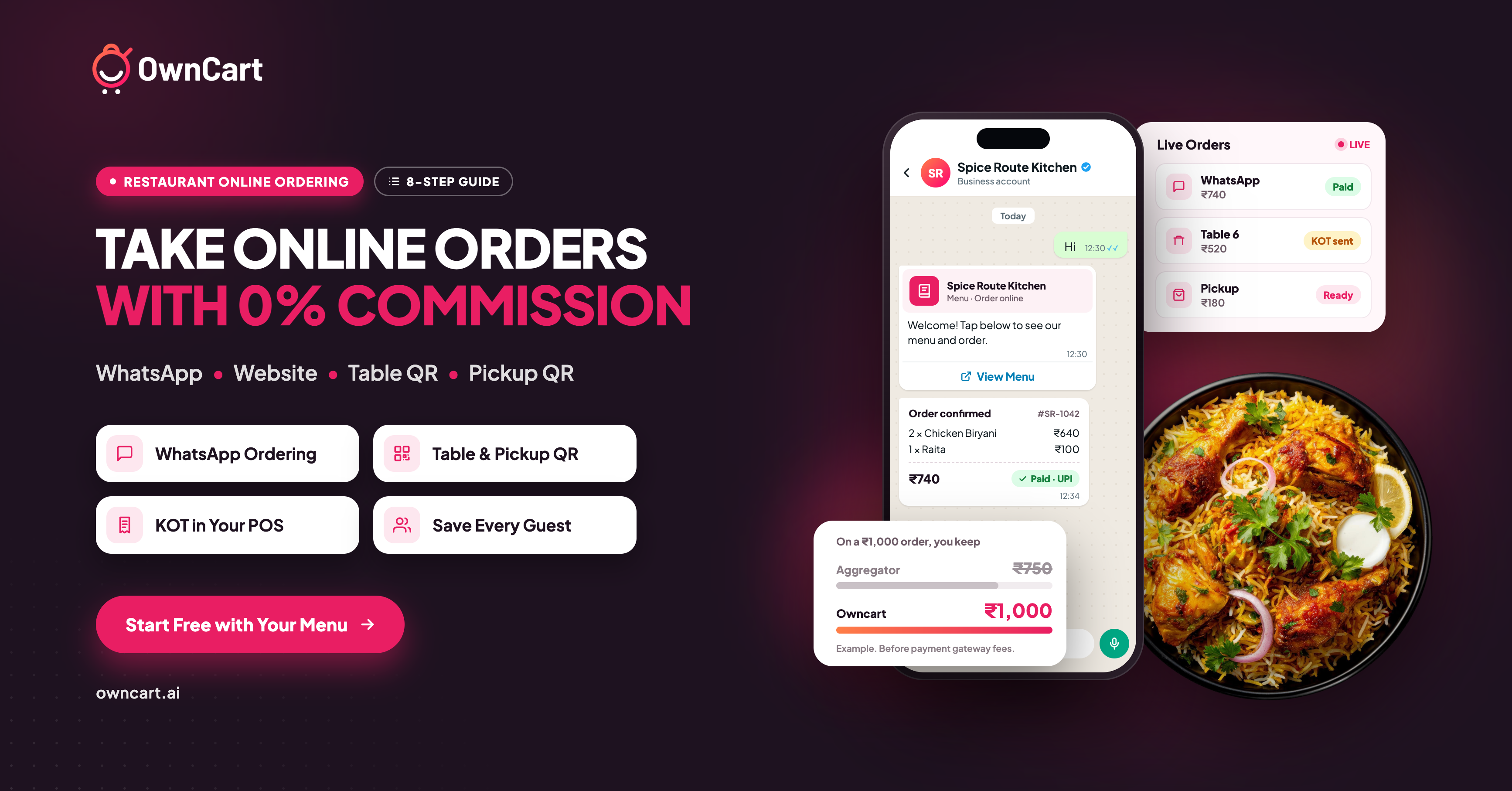
Quick answer: You can take online orders without paying commission by running your own ordering channels: WhatsApp, your own website, table QR and pickup QR. With Owncart you start free by uploading your menu, take payment by UPI or card before you cook, send orders straight to your kitchen, and save every guest's number. Keep Swiggy and Zomato for new guests, and bring your regulars direct.
At a glance
- 0% commission on every Owncart order
- Start free: upload a menu photo or PDF to get a digital menu, table QRs and a starter website
- Works with Petpooja and Positeasy: orders print as a normal kitchen ticket
- Keep the aggregators: use them to find new guests, and Owncart for regulars
Every order that comes through an aggregator costs you a cut of the bill, and the guest's number stays with the app. You can't thank that guest, tell them about tonight's special or invite them back.
With Owncart you build your own commission-free ordering channel on WhatsApp, your website, table QR and pickup QR, so you keep both the order and the guest. Here's how to set it up, step by step.
Why Direct Orders Matter
Take the same ₹1,000 order from a regular customer:
Now look at a month. If 100 regulars order ₹500 each through an aggregator at 25%, you give away ₹12,500 a month in commission. That's ₹1.5 lakh a year.
Example only. Aggregator commission varies by city and contract. Payment gateway fees apply on Owncart orders.
Why Will Guests Order Directly Instead of on an App?
This is the first question most owners ask. Regulars order direct when it's just as easy and gives them something extra:
- It's familiar. They say "Hi" on WhatsApp, the app they already use every day.
- Better offers. Since you're not paying commission, you can give regulars a small discount or a free add-on and still earn more.
- Rewards. Points on every order bring them back again.
- A direct line to you. They reach the restaurant itself, not a call centre.
- Faster at the table. Scan, order and pay without waiting for a waiter.
Step 1: Start Free with Your Menu
Go to store.owncart.ai and upload a photo or PDF of your menu. Owncart's AI builds your free digital menu from it, and you also get a QR code for every table and a starter website.
You can put your menu online the same day, without paying anything up front.
Step 2: Polish Your Menu
Check every dish and tidy it up:
- Add clear photos
- Group dishes into categories like Starters, Biryani and Beverages
- Add half and full portions, spice levels, and add-ons like extra raita or egg
- Set item timings and stock, so guests never order something you've run out of
One menu works across every channel, so you only update it once.
Step 3: Choose the Channels Your Guests Will Use
Owncart gives you four ordering channels you own, all with the same menu and prices:
For a café or counter, this also saves you buying a self-order kiosk.
Step 4: Set Up Payments and Delivery
Payments: Guests pay by UPI or card through Razorpay, or through a pay link inside WhatsApp. Unpaid links expire, so your kitchen only cooks orders that are already paid. Cash on delivery is also available for guests who prefer it.
How guests get their food: choose any mix of these:
- Pickup and dine-in only: the easiest way to start if you don't have riders
- Your own riders: assign orders to your staff
- Delivery partners: book a rider through partners such as Adloggs, Shadowfax and Porter
Step 5: Connect Your Billing Software (Optional)
If you use Petpooja or Positeasy, connect it. Your menu stays in sync, and every paid order prints as a normal kitchen order ticket (KOT), so nobody retypes anything. Order updates and the digital bill go to the guest on WhatsApp.
No billing software? You can run everything from Owncart's live order board, a single screen where orders from every channel arrive.
Step 6: Test an Order Yourself
Before you tell anyone, place a test order on each channel:
- Send "Hi" to your WhatsApp number
- Scan a table QR
- Try the pickup QR
Check that prices are right, the payment goes through, the order appears on your live order board, and the kitchen ticket prints.
Step 7: Tell Your Guests
Your own channels only work if guests know about them:
- Print table and pickup QRs, and add them to bills and takeaway packaging
- Put your Owncart link in your Instagram bio, reels and stories
- Use Ownchat's comment-to-DM so followers who comment "MENU" on a reel instantly get your menu link
- Share the link on WhatsApp status and groups, and on your Google Business Profile
- Tell regulars at the counter: "Next time, order on WhatsApp and get [your offer]"
For more ideas, see restaurant marketing with Owncart.
Short videos of a popular dish, like a fresh plate of biryani or parotta and gravy, bring people to the menu.
Step 8: Run Service and Bring Guests Back
Watch the live order board, where every channel arrives in one place, and confirm orders quickly.
Every direct order saves the guest's name, number and order history to your list. Use that list to bring regulars back:
- OwnRewards: points, coupons and referrals
- Ownchat reminders: a message with the order summary and payment link for guests who started an order but didn't pay
- Win-back messages: automatic messages to guests who haven't ordered in 30 days
OwnRewards and Ownchat come together with Owncart in the Own Suite bundle at ₹25,000 per outlet per year.
Keep Swiggy and Zomato for finding new guests, and bring your regulars to your own channels.
What It Costs
GST is extra and payment gateway fees apply. WhatsApp messages are billed per delivered message, at the rates in Owncart's Message Price File, never as a cut of your sale. See Owncart pricing for the latest figures.
Final Thoughts
Online ordering doesn't have to depend on someone else's app. Put your menu where your guests already are, take payment before you cook, send the order straight to your kitchen, and save every guest.
Start with one channel, such as table QR or WhatsApp, and add the others once your team is comfortable.
Ready to own your orders? Upload your menu and go live today. Our team will help you set up.
Start free with your menu · Book a demo
Frequently Asked Questions
Does Owncart charge commission on orders?
No. Owncart charges 0% commission on Owncart orders. You pay a flat yearly plan, plus payment gateway fees and WhatsApp message charges.
Do my guests need to download an app?
No. Ordering works in any mobile browser and inside WhatsApp. Regulars can add your site to their home screen.
Do I need billing software to use Owncart?
No. You can manage orders on the live order board. If you use Petpooja or Positeasy, orders print there as a kitchen ticket.
How do guests order on WhatsApp?
They say "Hi" on your WhatsApp number, open the menu link in the chat, pick dishes, pay by UPI or card, and the order lands on your live order board.
Can guests pay cash on delivery?
Yes. Guests can pay by UPI, card or cash on delivery.
I don't have delivery riders. Can I still use Owncart?
Yes. Start with pickup and dine-in through table and pickup QR, or use a delivery partner when you're ready.
How long does setup take?
You can put your menu online the same day by uploading a photo or PDF, and the Owncart team helps you with setup.
Should I stop using Swiggy and Zomato?
No. Keep them for new customers, and use Owncart for regulars, table orders and WhatsApp orders.
Can I start for free?
Yes. Upload a menu photo or PDF to get an AI-built digital menu, table QR codes and a starter website, then upgrade when you want to take paid orders.