
Turn “Hi” into a paid order
Your regulars already message you on WhatsApp. OwnCart turns those chats into paid, tracked orders that print straight to your kitchen.
Last updated
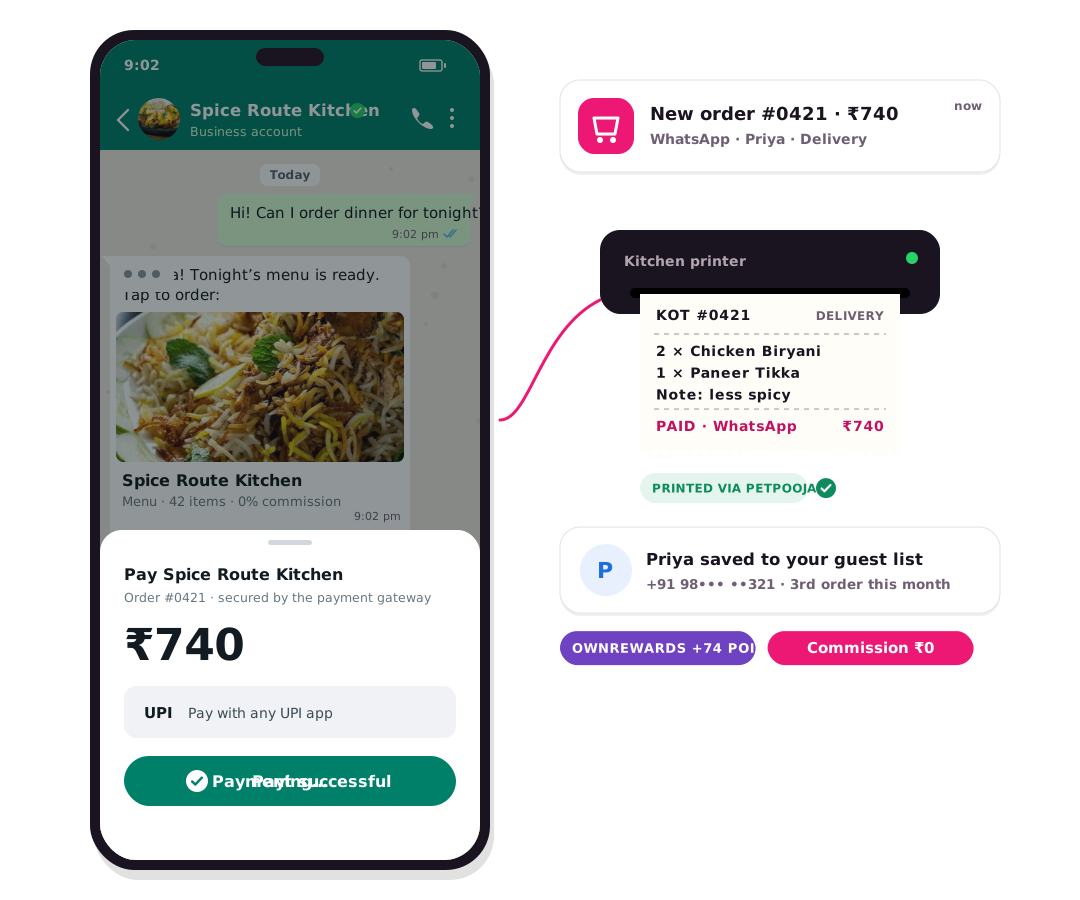
Watch the order flow

With OwnCart, a guest says Hi on your WhatsApp number and receives a secure menu link that opens inside WhatsApp. They choose dishes and delivery, pickup or dine-in, pay by UPI or card, and the order prints as a KOT in PetPooja. Unpaid links expire, so the kitchen only cooks paid orders.
See a WhatsApp order reach PetPooja
Watch the full flow: Hi → menu → payment → KOT → status updates.
How WhatsApp ordering works
- Guest says HiA regular messages your WhatsApp number, scans a QR, or taps a Click-to-WhatsApp ad.
- Menu opens inside WhatsAppThey get a secure OwnCart link that opens in WhatsApp's in-app browser, already knowing who they are.
- Choose and customiseThey pick dishes, Half / Full, add-ons and cooking instructions, and choose delivery, pickup or dine-in.
- Pay in the chatUPI or card through Razorpay or WhatsApp pay. Unpaid links expire, so no ghost orders reach the kitchen.
- Kitchen gets the KOTThe paid order lands on your live board and prints as a KOT in PetPooja if connected.
- Updates on WhatsAppConfirmation, “out for delivery” and a feedback request go out automatically.
Why a link beats a chatbot
Many WhatsApp ordering tools make the guest type each item in a long chatbot conversation. That is slow for the guest and every message costs money. OwnCart sends one secure link, and the whole menu, cart and checkout happen on a page inside WhatsApp. The guest sees photos, prices and add-ons, and the order needs only a few messages.
| Chatbot ordering | OwnCart link in WhatsApp | |
|---|---|---|
| How the guest orders | Types items one message at a time | Taps through a visual menu |
| Photos, add-ons, Half/Full | Hard to show | Built in |
| Messages per order | Many | A few |
| Payment | Separate step | In the same flow, link expires if unpaid |
| Kitchen | Staff re-type the order | KOT prints automatically |
What your staff stop doing
- Copying WhatsApp chats into the POS by hand
- Chasing payment screenshots
- Replying “order ready?” messages one by one
- Cooking orders that never get paid for
Keep your number
With WhatsApp co-existence through OwnChat you can keep your existing WhatsApp Business number and app while adding ordering and automation.
After the order: retargeting
Every WhatsApp order builds your customer list. Carts left unpaid trigger a reminder, and guests who stop ordering get a win-back offer. See WhatsApp marketing and retargeting.
“We take orders directly on WhatsApp. We've completely eliminated commission charges charged by Swiggy and Zomato.”
Gayathri, Co-Founder, Tositos · Chennai · PetPooja
Common questions
How do customers order on WhatsApp?
The customer says Hi on your WhatsApp number and receives a secure OwnCart link that opens inside WhatsApp. They pick dishes, choose delivery, pickup or dine-in, pay by UPI or card, and the order lands on your live order board. See WhatsApp ordering.
How much do WhatsApp messages cost?
Meta charges per message. Current rates we bill: marketing ₹0.98, utility ₹0.14, authentication ₹0.14. From 1 October 2026 Meta charges ₹0.14 per message. Because the menu opens as a page inside WhatsApp, an order needs only a few messages instead of a long chatbot conversation.
Can OwnCart remind customers who left without ordering?
Yes. When a cart is abandoned, OwnCart sends the event to OwnChat, which sends a WhatsApp reminder with the order summary and a payment link, for example 4 hours later. Customers inactive for 30 days get an automatic win-back message with an offer. See WhatsApp marketing and retargeting.
Do my customers need to download an app?
No. Your ordering site works in any mobile browser and inside WhatsApp. Regulars can add it to their home screen as an app (PWA) without the Play Store.
Related pages
Turn your WhatsApp into an ordering channel.
Book a demo and see a live WhatsApp order reach your kitchen.
- 0% commission on every order
- Free digital menu to start
- Set up in Tamil or English